
Keep tabs
on the herd.
See what your coding agents are doing, catch the requests that need you, and get back to work.
Session activity
-
Working
Runs a tool
-
Waiting
Asks for approval
-
Done
Finishes its turn
Works with
- Claude Code
- Codex
- OpenCode
- Cursor
- Gemini CLI
- Copilot CLI
From working to done.
Follow a session as it runs, pauses for input, and finishes its turn.
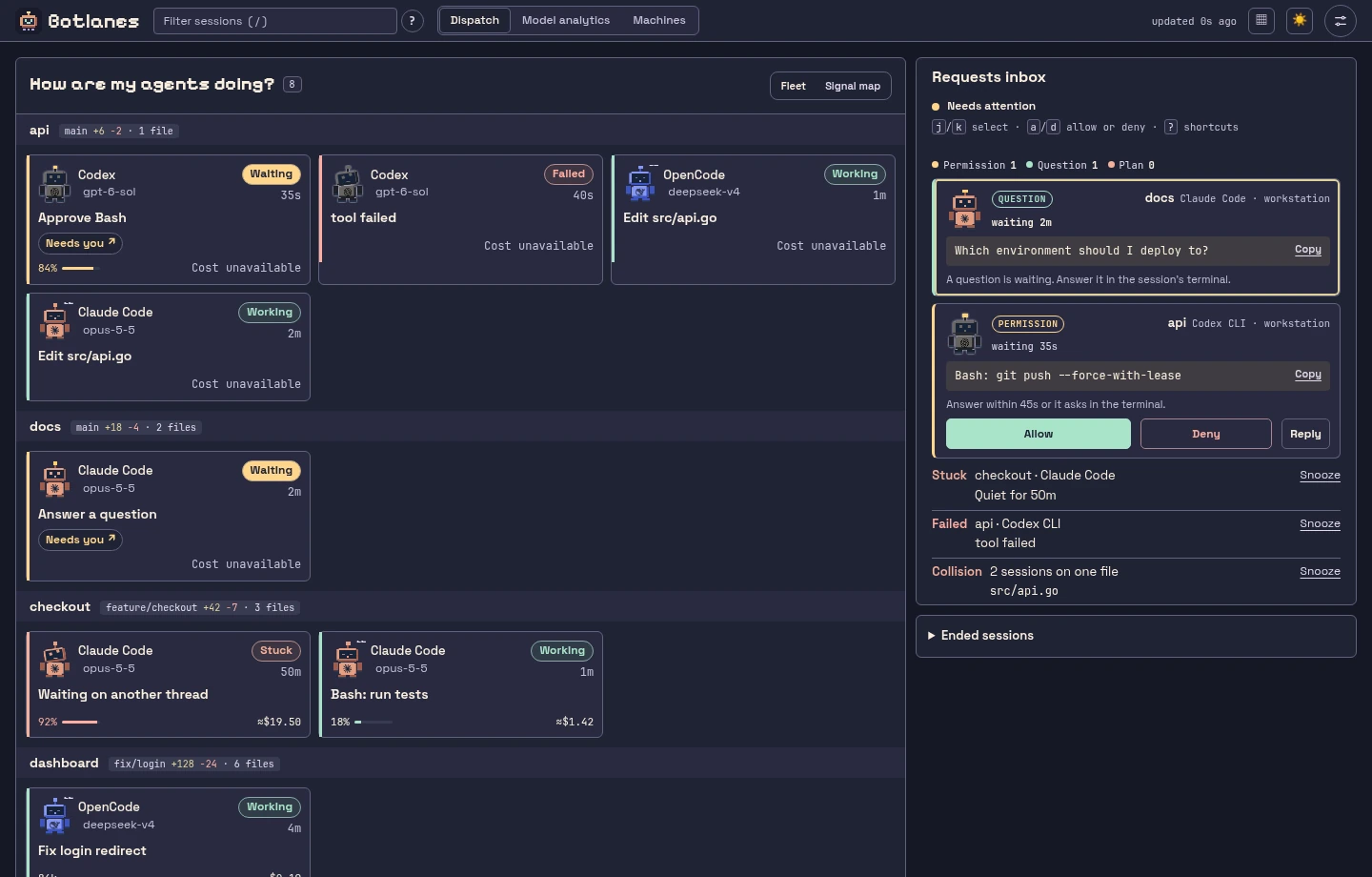
Know what
needs you.
BotHerd runs alongside your coding agents and brings their sessions together in one self-hosted dashboard.
- See the whole fleet
- See which agents are working, waiting, stuck, or finished. Group sessions by project or machine.
- Handle permission requests
- Review the exact command and allow or deny supported Claude Code and Codex requests from the dashboard. Try a permission request.
- Follow work over time
- See recent activity and compare token usage and estimated costs where your agents report them.
Try a permission request.
Review the command, choose Allow or Deny, and see how the session responds.
Requests inbox preview
Codex · api
Run a command
go test ./...Waiting · The session is paused for your decision.
One board across machines.
Run BotHerd where your agents work. Connect other machines to a hub to see their sessions on the same dashboard.
- Browser
- Open the dashboard on your desk, phone, or tablet. Filter by project or machine when you want to focus.
- Terminal
- Use the terminal dashboard to check sessions and respond to supported permission requests without leaving your shell.
- Wall display
- Keep a read-only view of your sessions and pending requests on a shared screen.
Common questions
Where does BotHerd run?
On a machine you control, alongside your coding agents. It reads local hooks and session activity to build the dashboard.
Can I answer every request from the dashboard?
You can allow or deny supported permission requests from Claude Code and Codex. Open-ended questions and plan approvals are handled in the agent’s own terminal.
Can I check sessions from another device?
Yes. Open the dashboard from a device on the same network. For remote access, you can put your instance behind a protected tunnel or VPN.
Run it yourself.
Get the source and setup instructions on GitHub.